Views
Three ways to look at a folder, remembered per scope: icons, columns and details.
Three, not five. list and table were variations on details with a column dropped, so they offered three ways to look at the same rows and nothing to choose between them. A stored preference naming one of them falls back to the default, which is what an unknown mode has always done.
// config/filament-file-explorer.php
'view' => ['default' => 'grid'],       // grid, columns or details
FilamentFileExplorerPlugin::make()->defaultViewMode('columns')
The default only applies until the user picks one; after that their choice is remembered per scope, so the same person can browse a shared library as icons and a project’s files as rows.
Icons
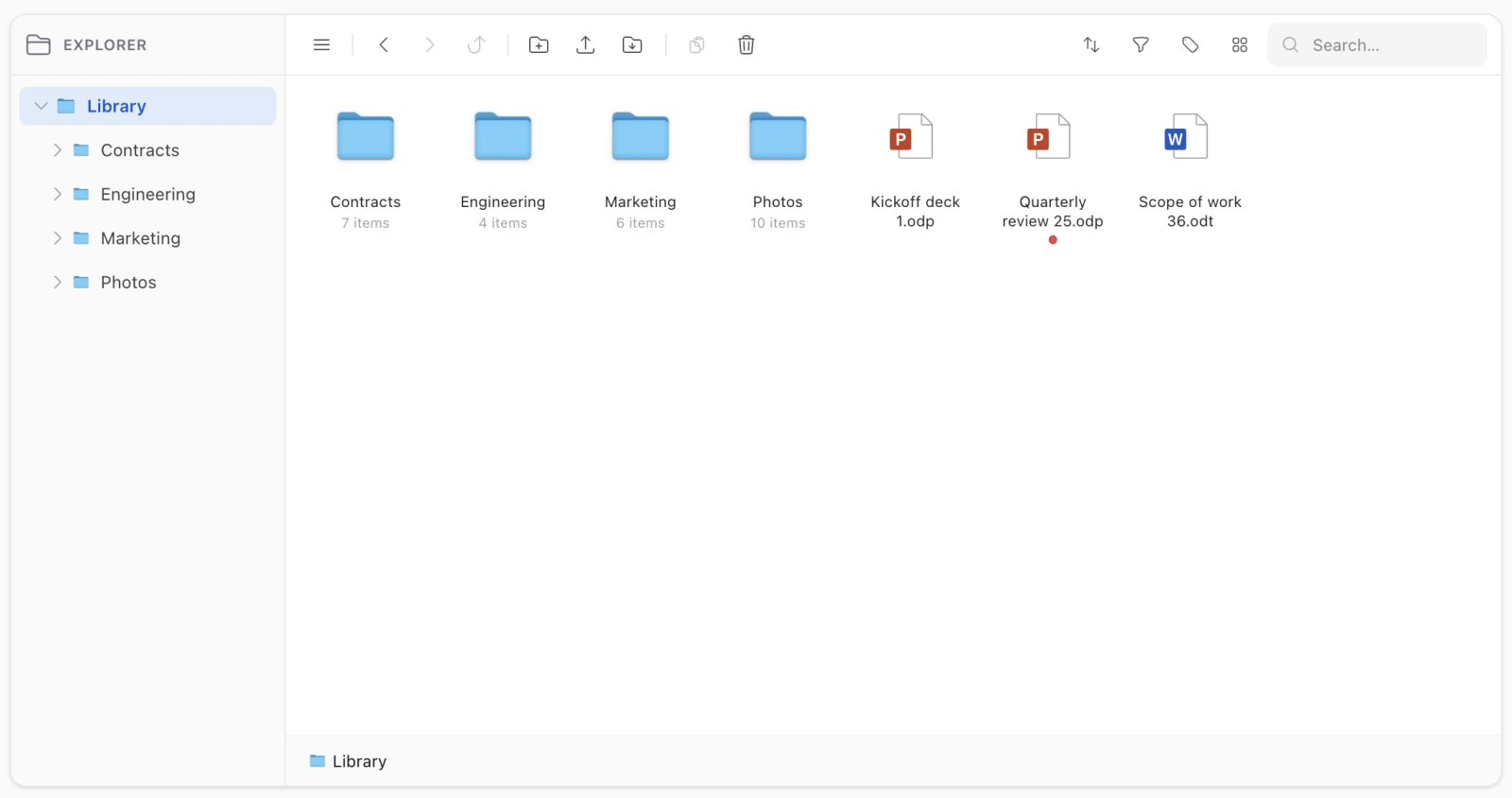
A grid of thumbnails with the name on a pill beneath. Images render their thumbnail through the media route; everything else gets an icon for its kind.
The selected item’s label is a solid accent pill with white text, while the well behind the icon stays translucent — a thumbnail has to show through the selection, and the Finder makes the label the unmistakable cue.
Details
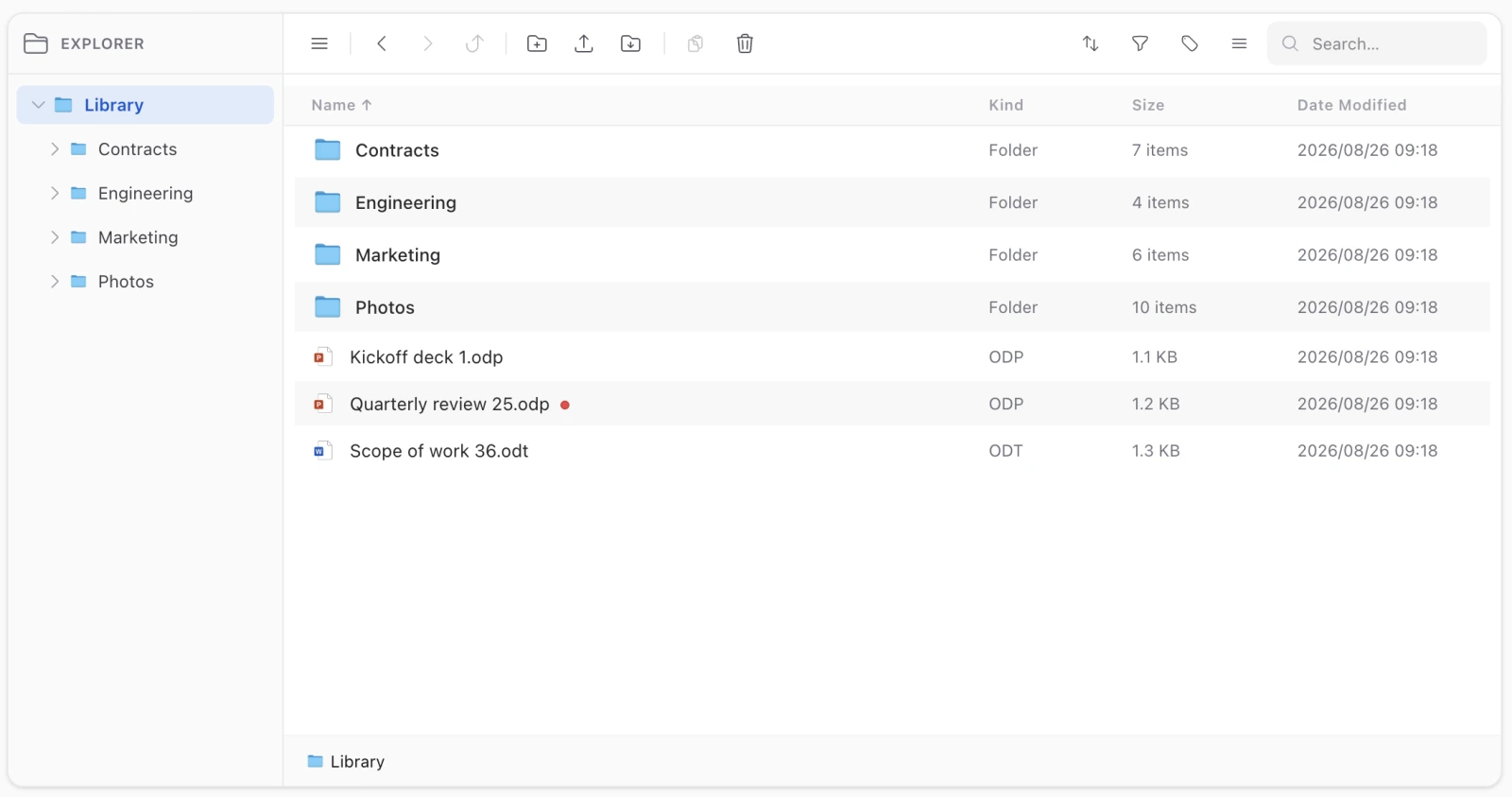
Rows with kind, size and date, under a column header that stays pinned while the rows scroll under it. Clicking a header sorts by it; clicking it again reverses.
Columns
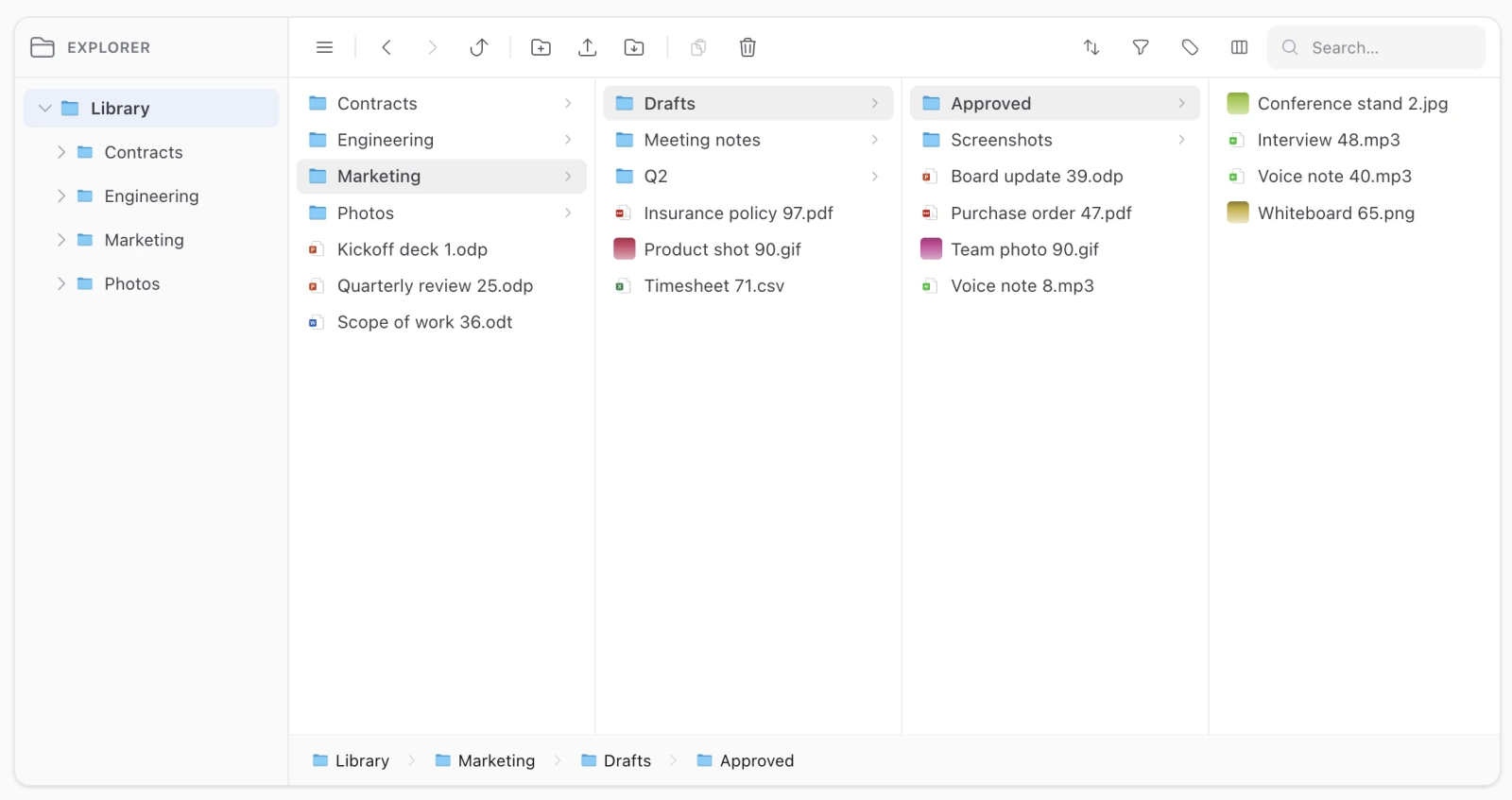
The Finder’s cascading browser: one pane per level of the path, the contents of the folder you are in on the right, and the trail through the tree marked in the panes behind it. Clicking a folder in any pane moves there and drops the panes beyond it; clicking a file in a pane behind the last one moves there and selects it.
Four things about it are deliberate:
- Left and right walk the panes. Right descends into the selected folder and lands on the first entry of the pane it opens, so you can keep descending; left walks back out with the folder you just left selected. Up and down stay inside the pane, and with shift held every arrow extends the selection there instead of navigating.
- Images show their thumbnail, through the media route like everywhere else, at exactly the size of the icon it replaces — so panes of photos and panes of documents line up on the same edge.
- Only the last pane holds selectable items. The panes behind it are navigation, and carry none of the attributes the selection layer reads — so shift-ranges and the marquee operate on the folder being browsed, exactly as in every other view. Folders in any pane are drop targets, though: a destination you can see is a destination you can drop on.
- Searching falls back to the flat result list. A search answers with matches from the whole scope, which is not a path; drawing it as one would be a lie about where the results are. The same is true of a tag filter, which answers from a subtree.
It costs one listing query per level of the path, which folders.max_depth bounds, and every pane is windowed in SQL like the main listing — a pane over a folder holding thousands of files is the same problem the listing already solves.
The
tableview used to be labelled Columns, which is the Finder’s name for the cascading browser and not what it rendered. It is now labelled Table, and Columns means the browser.
Scrolling
The explorer scrolls its contents inside itself. The items area, the sidebar tree, the inspector and each column pane each scroll on their own, so a folder holding a thousand files does not turn into a thousand files of page. How tall it gets is one custom property.
The DOM contract
If you are extending the views or writing tests against them, three attributes are the contract the selection layer reads:
data-fe-items |
The items container — also what the CSS and the keyboard handler address |
data-fe-type |
folder or file, on every selectable item |
data-id |
The folder or media id |
They are frozen at 1.0.0. A new view mode has to carry them, and — as the column view shows — a pane that deliberately omits them is navigation rather than selection, which is a way of honouring the contract rather than breaking it.