Keyboard and touch
Keyboard
The listing is a listbox: it takes focus, and the items are its options.
| Keys | Action |
|---|---|
| Arrows | Move the selection — in the grid and in the row views |
| Shift + click / Shift + arrows | Extend the selection to a range |
| Ctrl/Cmd + click | Add or remove one item |
| Ctrl/Cmd + A | Select everything on screen |
| Enter | Open the selected folder, or preview the selected file |
| F2 | Rename |
| Ctrl/Cmd + C / X / V | Copy, cut, paste |
| Delete / Backspace | Delete the selection |
| Escape | Close the context menu, cancel a rename, close a dialog |
In the column view, left and right walk the panes instead of moving inside one: right descends into the selected folder and lands on the first entry of the pane it opens, left walks back out with the folder you just left selected. With shift held, every arrow extends the selection inside the pane instead of navigating.
Two guarantees:
- Shortcuts only fire while the listing has focus — never while you are typing in the search box or a rename field. They are bound on the items container rather than on the window, which is also what lets a page hold two explorers (the picker in a modal beside the page) without either hearing the other’s keys.
- Every shortcut still goes through its ability check. The keyboard is a faster way to reach an action, not a way around one.
Touch
The finder is a mouse layout, and a finger breaks it in one specific way: a drag arms after five pixels of movement, which is also how far a finger travels when it means to scroll. On a tablet, dragging a folder to scroll the view moved the folder.
So the two pointers get different gestures.
| Gesture | Mouse | Touch |
|---|---|---|
| Select | click | tap |
| Open | double-click | double-tap |
| Context menu | right-click | hold |
| Drag to move or copy | press and move | — |
| Marquee select | press empty space and move | — |
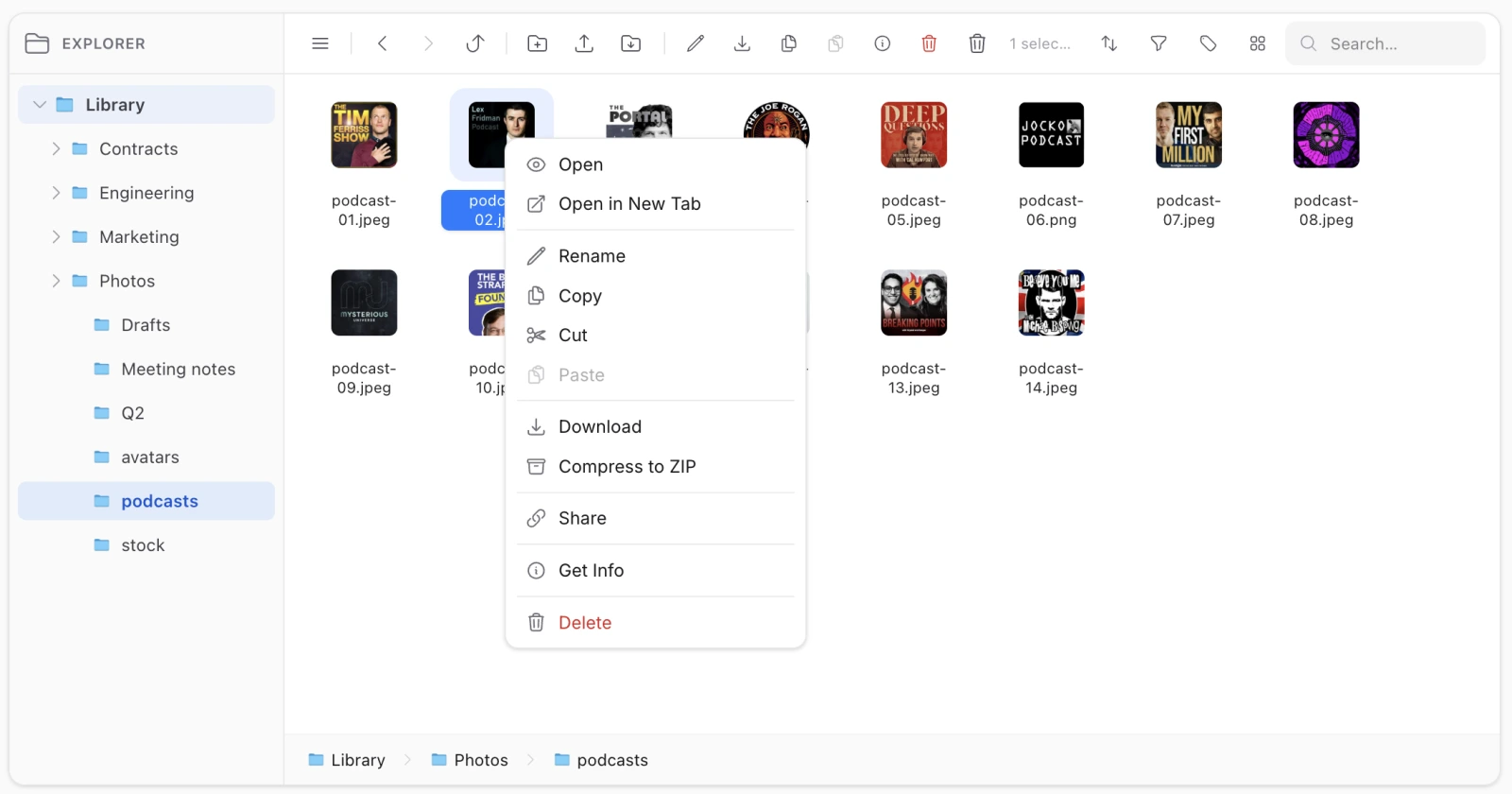
A touch never arms a drag. It arms a hold, and moving cancels the hold and leaves the browser to scroll. Moving items stays fully reachable: the hold opens the context menu, where cut, navigate and paste do what the drag would have.
A hold on empty space opens the folder’s own menu, the counterpart of right-clicking the background.
The marquee is left alone, deliberately. It is bound to mousedown, so a finger never starts one — which is correct: a finger dragging across empty space should scroll.
Three CSS details make the rest work. touch-action: manipulation on the items container is what makes double-tap fire at all — it drops double-tap-to-zoom and keeps pan and pinch. iOS’s own long-press callout is suppressed on items so it does not open over ours. And controls grow under @media (pointer: coarse) to a real hit target.
Drag and drop
Drag a selection onto a folder to move it, or hold the modifier your platform uses to copy. Drop targets are every folder the view shows, including the panes behind the last one in the column view — a destination you can see is a destination you can drop on.
Dragging files from the desktop into the explorer uploads them into the folder you dropped on, not into the root. Dropping a whole folder keeps its structure, which needs the mkdir ability as well as upload.
A refresh that arrives mid-drag would morph the DOM and cancel it, so automatic refresh stands down while a drag is in progress.